An item’s page
Each item has its own sheet, like a page in a workshop manual. The drawing at the top numbers its jobs where they happen; everything below is the schedule, the parts, the to-do list and the history.
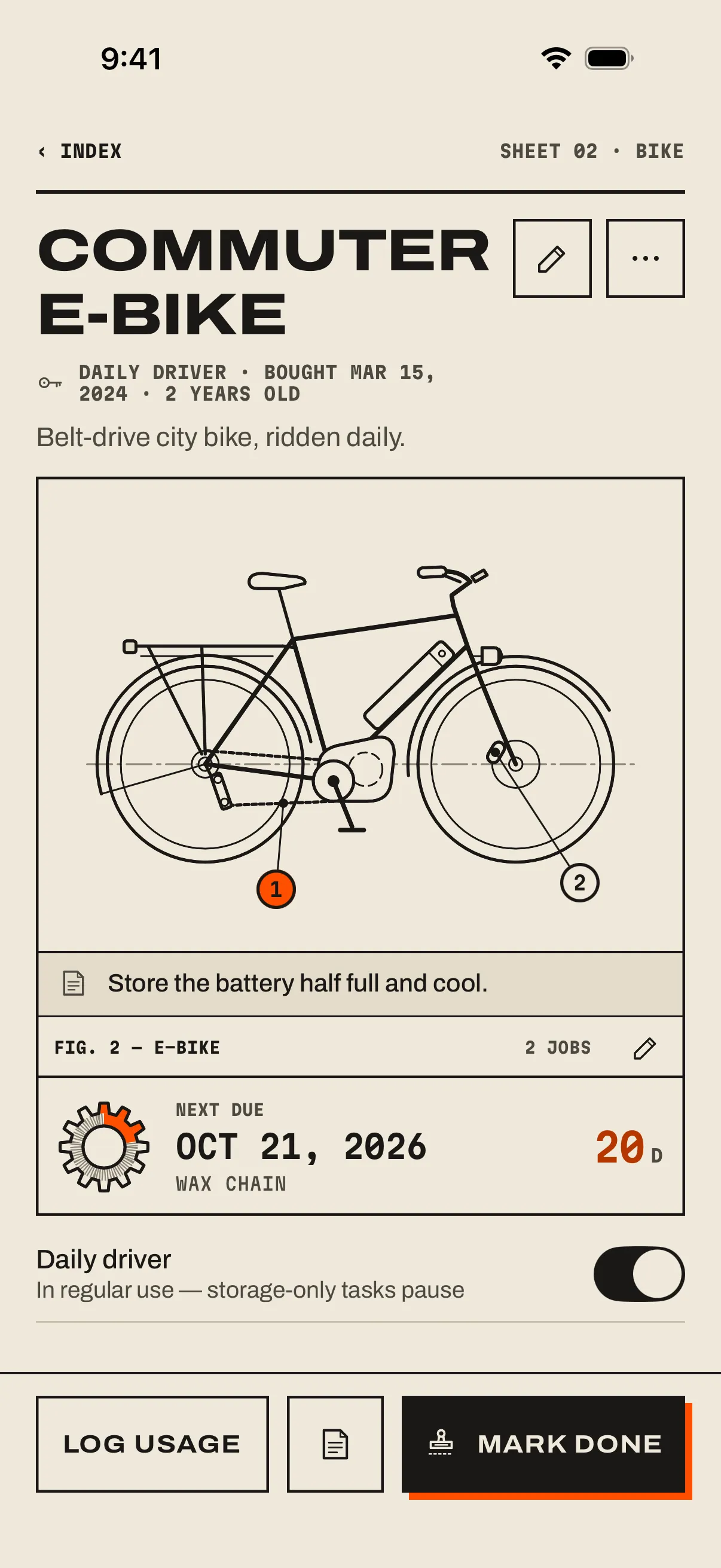
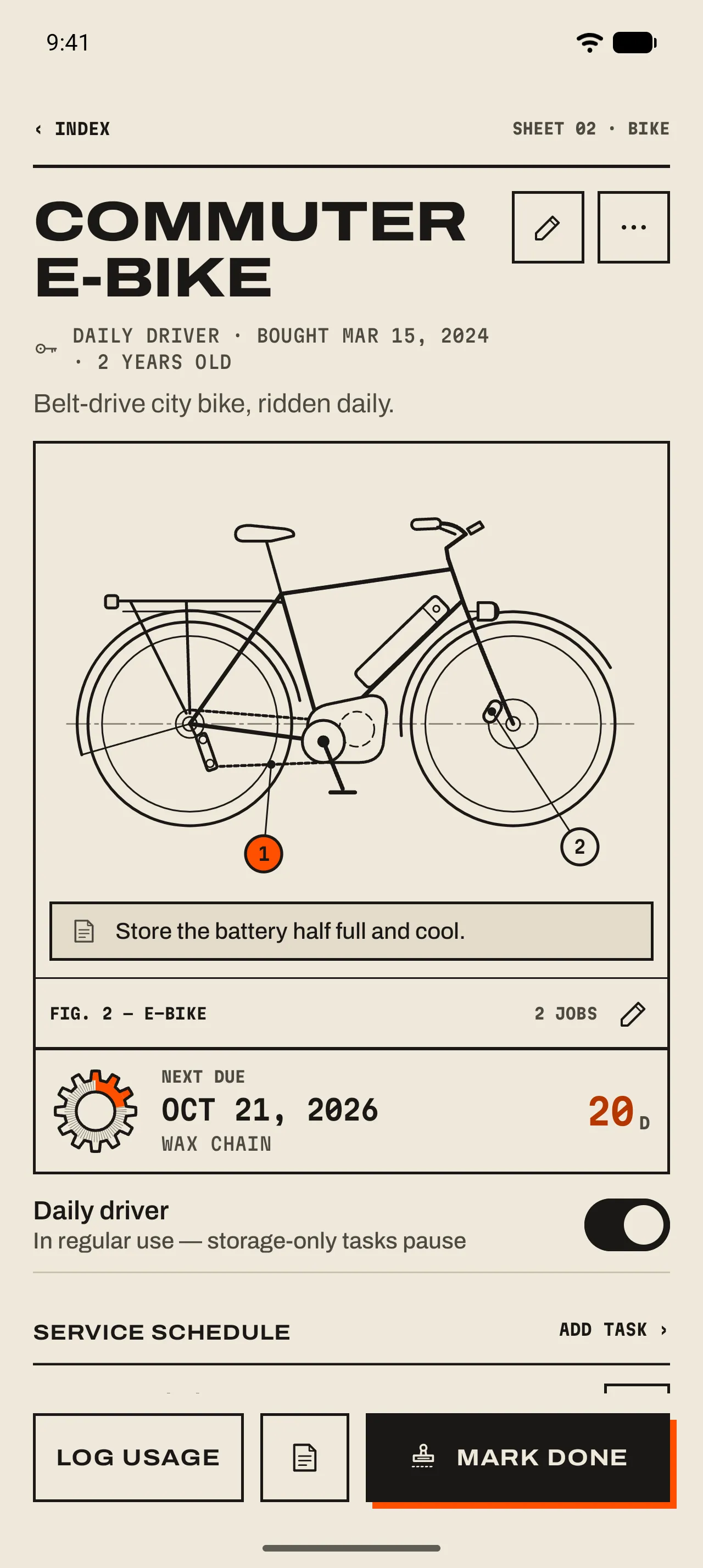
- 1 Title and spec line
The name, then what’s worth knowing at a glance: Daily driver, Archived, the firmware version, when you bought it and how old it is.
- 2 The drawing
Each job sits on the part it’s about, numbered like the schedule below. An orange balloon needs you.
- 3 Adjust drawing
The pencil in the caption bar. Drag any point or balloon to where it is on your gear.
- 4 Next due
The most urgent job, its date and the days left.
- 5 Daily driver
In regular use. Its storage-only jobs pause until you switch it off.
- 6 The bottom bar
Log usage logs a use now; the note button logs one with a date and a note; Mark done opens the record.
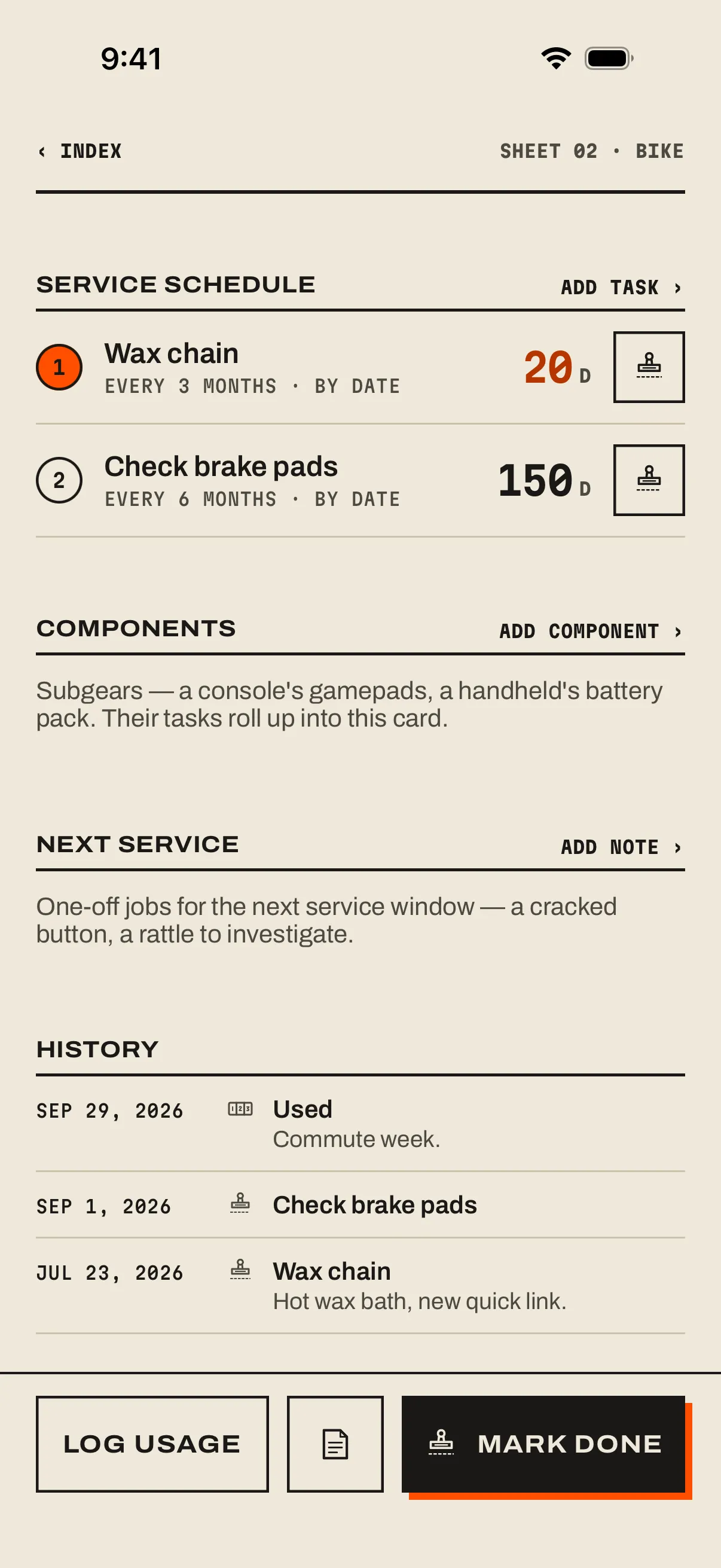
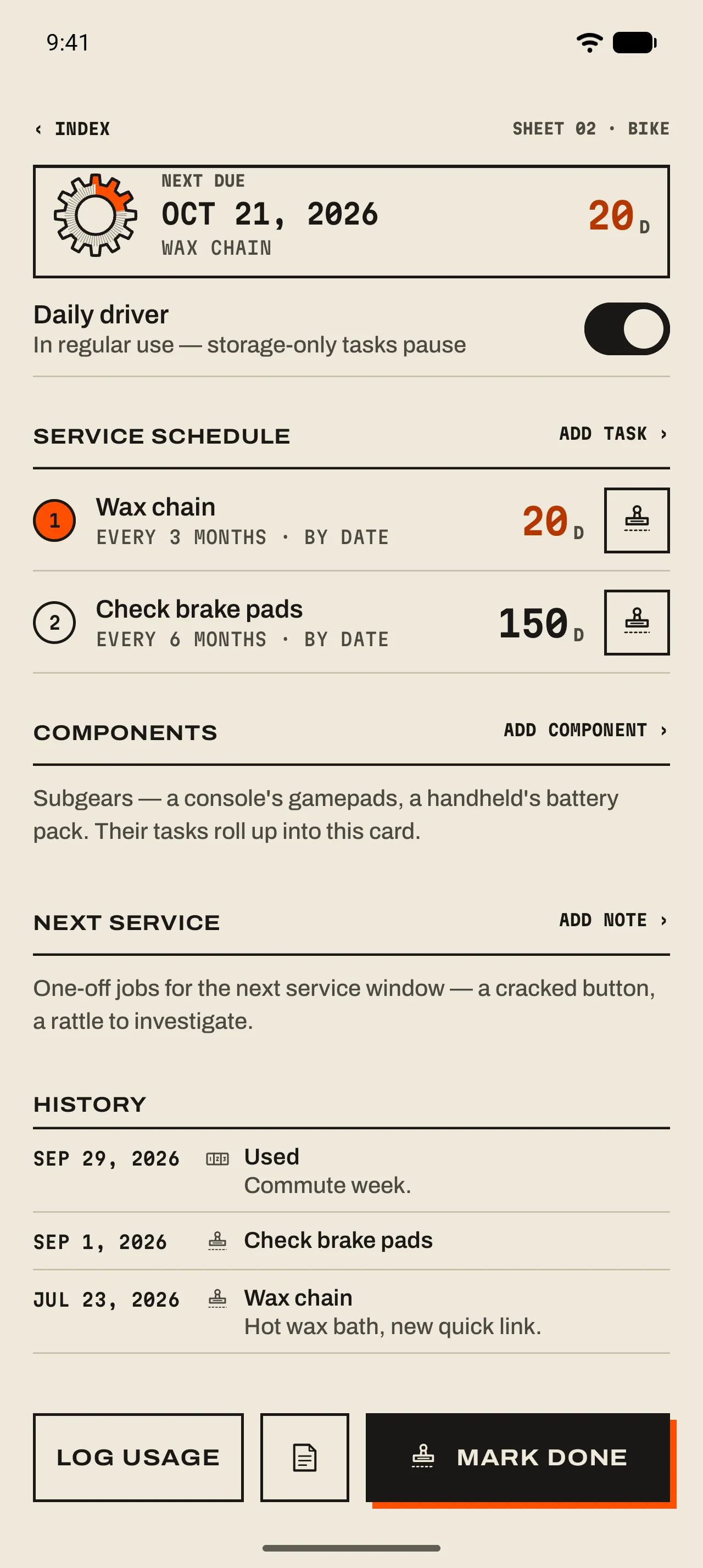
- 1 Service schedule
One row per job: its balloon, its interval and what resets it, the days left, and a done button that opens the record. Add task › adds one.
- 2 Components
Parts with their own jobs: a pack, a lens, a gamepad. Add component › adds one.
- 3 Next service
One-off jobs for the next time it’s on the stand. Add note › adds one.
- 4 History
Every stamp, every use, every fix, newest first, with your notes.
Edit gear
The pencil at the top of the page opens Edit gear. Everything you set when you added it, plus a few things you can fill in later.
- Category and drawing
- A new category picks its default drawing. Changing the drawing resets moved points, and jobs whose point isn’t on the new drawing go back to being matched from their title.
- Firmware version
- Shows in the spec line as “FW 2.1.0”. Bump it when you update the drone or the camera.
- Purchased
- Not set, Year, Year + month or Exact date: as much as you remember. See the tip ↓
- Part of
- Makes it a component of another item. 07 Components ›
Job row actions
- Tap a job
- Opens it in Edit task. 04 Jobs and countdowns ›
- More actions
- iPhonePress and hold a job for Mark done, Edit task, Add to calendar, Stop reminding and Delete task. Swipe it to the right to stamp it, to the left to delete it.AndroidLong-press a job for Mark done, Edit task, Add to calendar, Stop reminding and Delete task.
- Archive or delete the item
- The ⋯ menu at the top: Archive (or Unarchive) and Delete gear.