Components
Some gear is made of gear. A console’s gamepads, a handheld’s battery pack, a camera’s second lens each need their own jobs, but you think of them as part of the whole. Components live on their parent’s page and report to it.
Add a component
- 01
Open the parent’s page and tap Add component › under Components.
- 02
Name it, pick its category and drawing, and tap Save. It’s already Part of the parent.
- 03
Give it jobs, the same way as any item: Add task › on its own page.
- 04
Already added it as an item? Open Edit gear on it and choose the parent under Part of.
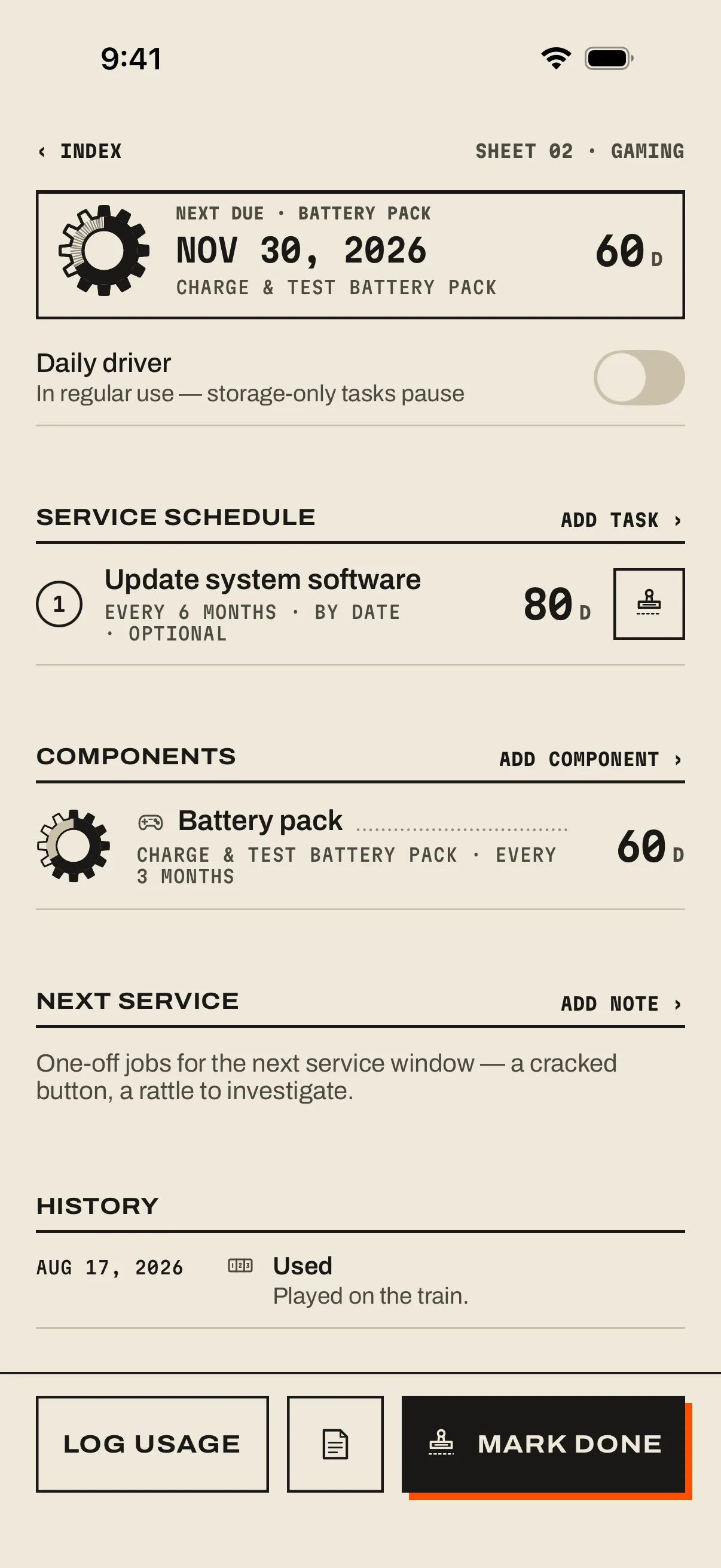
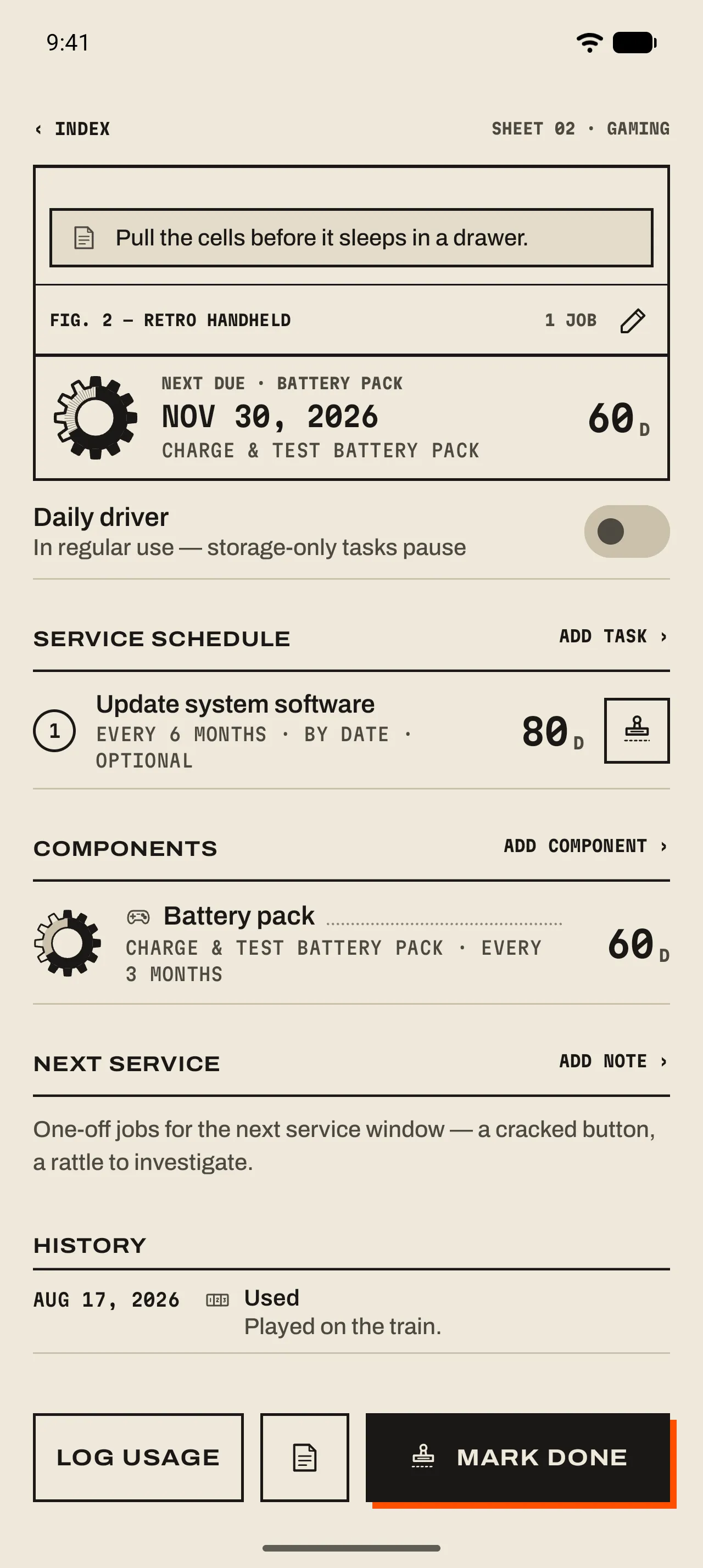
- 1 Next due, from a component
The parent’s next-due row includes its components’ jobs: “Next due · Battery pack”.
- 2 The parent’s own jobs
Update system software belongs to the handheld itself.
- 3 Components
Each component as an index row with its next job and days left. Tap it for its own page.
How components behave
- On Home
- Components stay off the list. Their jobs roll up into the parent’s row, “Battery pack · Charge & test battery pack · 60 d”, and count toward the parent being due. 02 Your kit ›
- Their own page
- A component has its own drawing, schedule, notes and history, and a Part of Retro handheld › link back.
- Daily driver
- Make the parent a daily driver and its components’ storage-only jobs pause too. 04 Jobs and countdowns ›
- Archive and delete
- Archiving or deleting the parent takes its components with it.
- Search
- Search on Home matches components’ names as well as items’.
- Free
- Components never count toward the 15 free items.