Reminders
GearKit taps you on the shoulder before a job is due, once a day at a time you choose, and only on the days you allow. Everything about when and how lives on one sheet.
Set up reminders
- 01
Open Settings (the sliders on Home) and tap Reminders.
- 02
Leave Remind me on. Pick the Time and the days reminders may come.
- 03
Choose how often a due job reminds you again, and whether overdue jobs escalate.
- 04
Pick One per task or Daily digest.
- 05
Tap Preview notifications to see them on your phone. The samples clean themselves up after a few seconds.
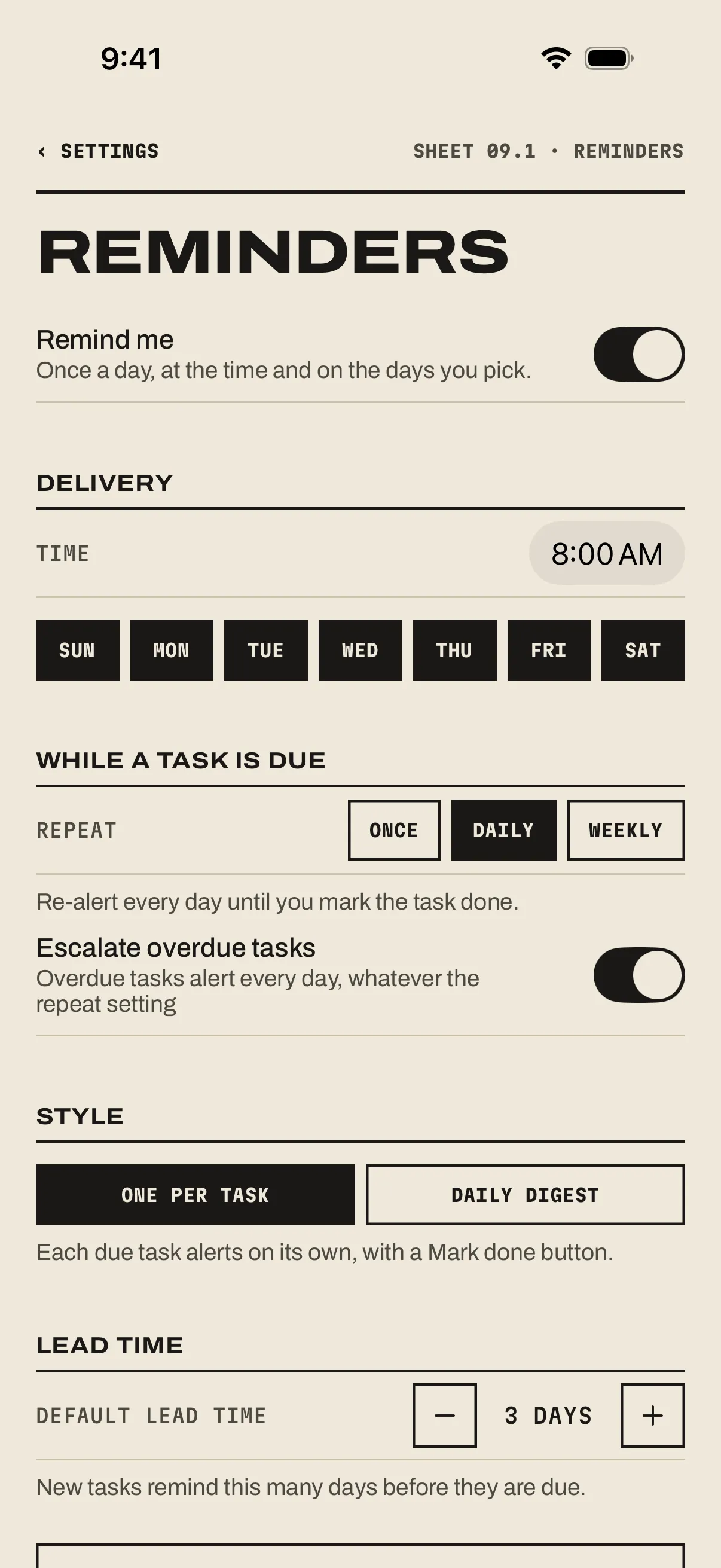
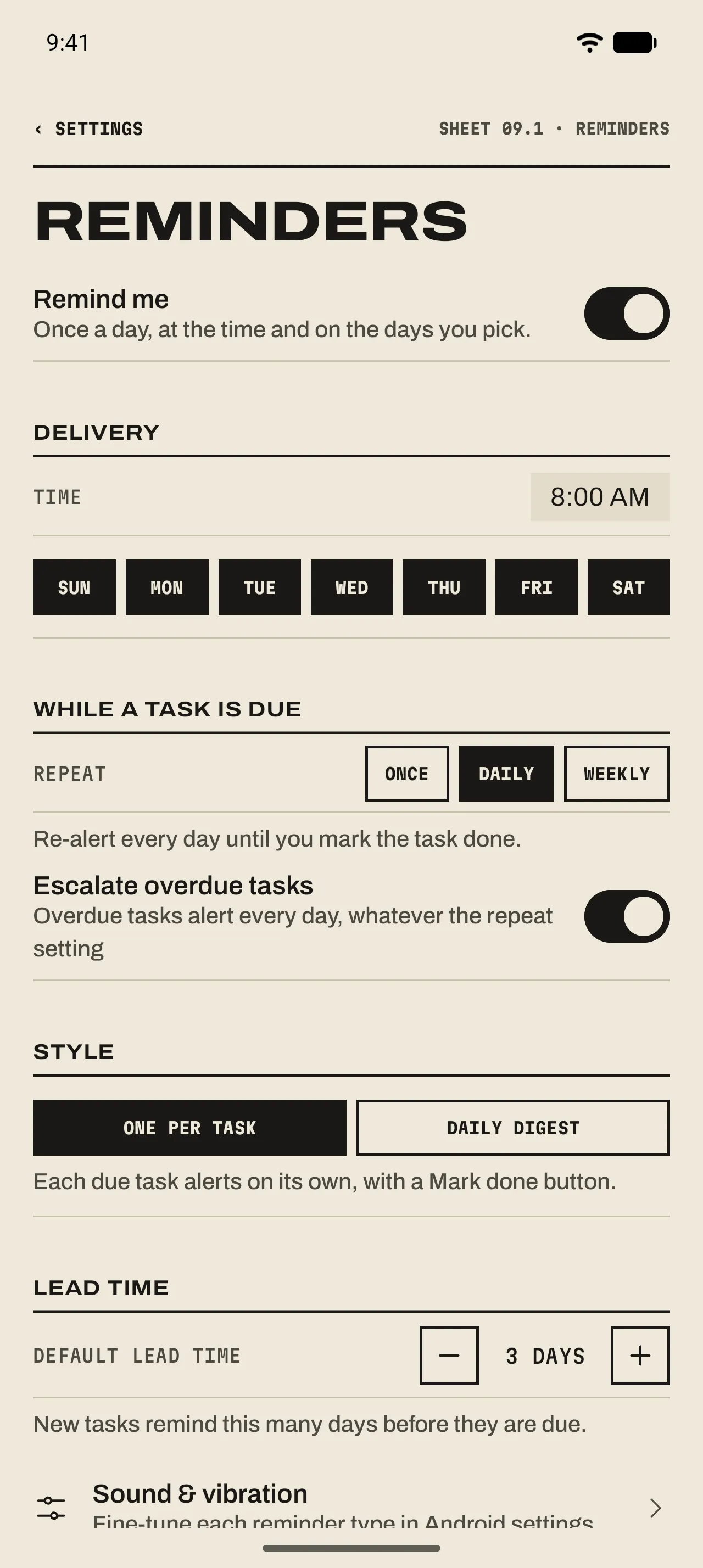
- 1 Remind me
The master switch. Off, GearKit stays quiet; the countdowns carry on.
- 2 Delivery
The time reminders arrive and the days they may. At least one day stays on.
- 3 While a task is due
Once: one alert, then quiet. Daily or Weekly: again until you mark it done.
- 4 Escalate overdue tasks
Overdue jobs alert every day, whatever the repeat setting.
- 5 Style
One per task: each due job on its own, with Mark done. Daily digest: one summary of everything.
- 6 Lead time
How many days before the due day a new job starts reminding. Each job can change its own.
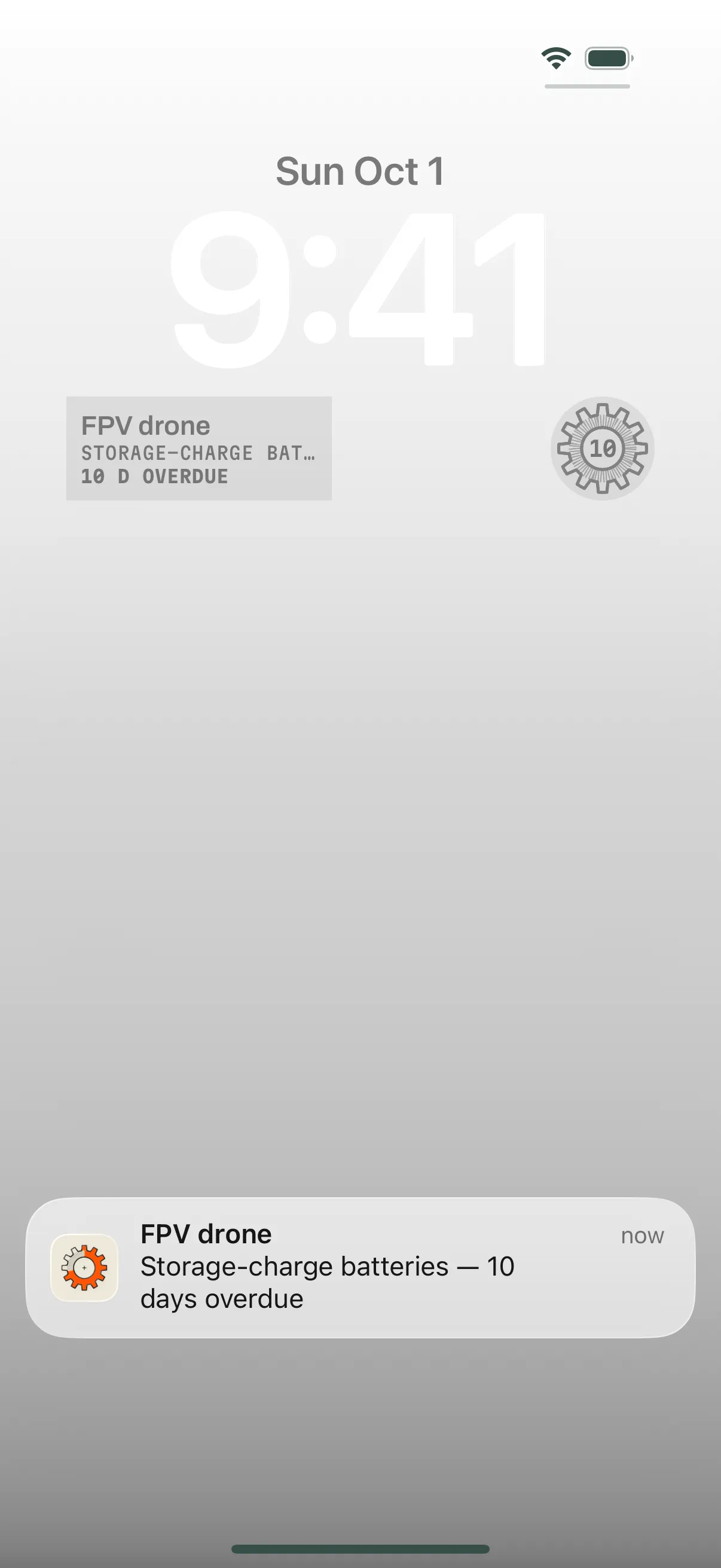
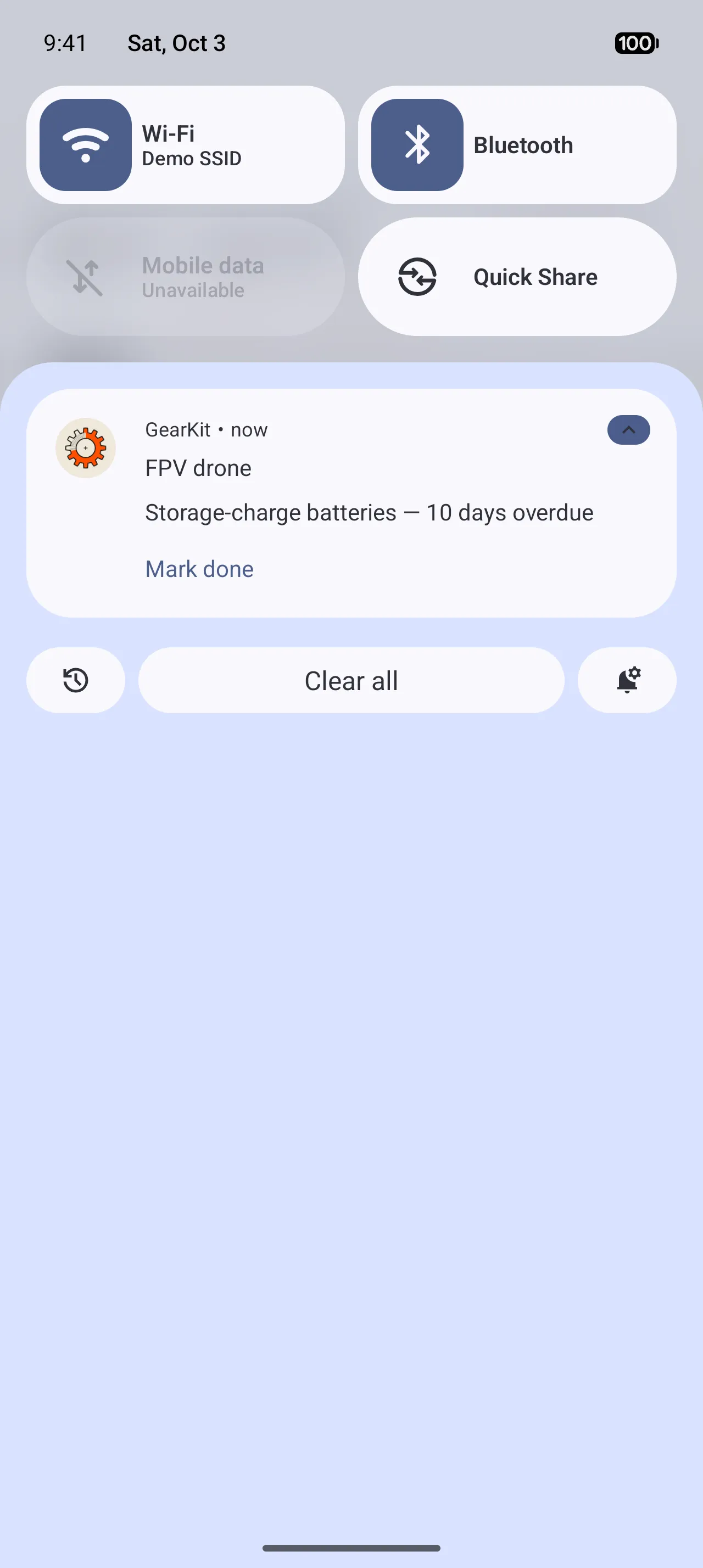
- 1 Mark done
iPhonePress and hold the reminder to reach Mark done. It stamps the job without opening GearKit.AndroidRight under the reminder. It stamps the job without opening GearKit.
What a reminder says
- One per task
- The item as the title, then the job and the time: “Wax chain — 2 days left”, “— due today”, “— 3 days overdue”. Tap it to open the item.
- Mark done
- iPhonePress and hold the reminder and tap Mark done. GearKit stamps the job without opening and confirms quietly: “Done: Wax chain. Logged for Commuter e-bike. Countdown restarted.”AndroidTap Mark done under the reminder. GearKit stamps the job without opening and confirms quietly: “Done: Wax chain. Logged for Commuter e-bike. Countdown restarted.” 05 Marking a job done ›
- Daily digest
- “3 tasks need attention”, then one line per job: “Commuter e-bike · Wax chain — 2 days left”. Tap it to open Home.
- Optional jobs
- Their reminders arrive without sound, and they never make the item due. 04 Jobs and countdowns ›
On your phone
- Permission
- iPhoneWhile Remind me is on and notifications aren’t allowed, Home shows Get service reminders. Enable asks iOS; if you said no before, it opens GearKit’s page in the iOS Settings app instead. Not now hides it for good. Preview notifications on this sheet asks too.AndroidWhile Remind me is on and notifications aren’t allowed (Android 13 and later), Home shows Get service reminders. Enable asks Android; if it won’t ask again, it opens GearKit’s notification settings instead. Not now hides it for good. Preview notifications on this sheet asks too.
- When they’re planned
- iPhoneiOS plans the next reminders ahead every time you change something, nearest first, so they arrive even if GearKit hasn’t been opened for days.AndroidAndroid checks your gear once a day at your delivery time, and again after every change, so a stamped job’s reminder disappears at once.
- Sound and vibration
- iPhoneSounds and banners follow the iOS Settings app, under Notifications › GearKit.AndroidSound & vibration, at the bottom of the sheet, opens Android’s settings for GearKit’s three kinds of reminder: essential, optional (silent by default) and overdue. Tune each one on its own.