Widgets
The widget is Home on your home screen. One row per item, most urgent first, with a done button that stamps the job without opening GearKit.
Add the widget
- 01
iPhonePress and hold an empty spot on the home screen, tap Edit, then Add Widget, and find GearKit. Pick small, medium or large.AndroidPress and hold an empty spot on the home screen, tap Widgets, and drag GearKit where you want it. Resize it from 2 × 1 up to 4 × 4.
- 02
iPhoneTo choose what it shows, press and hold the widget and tap Edit Widget.AndroidGearKit asks what it should show as you place it. Change it later from the widget’s long-press menu.
- 03
Pick All gear, Categories or Chosen gear.
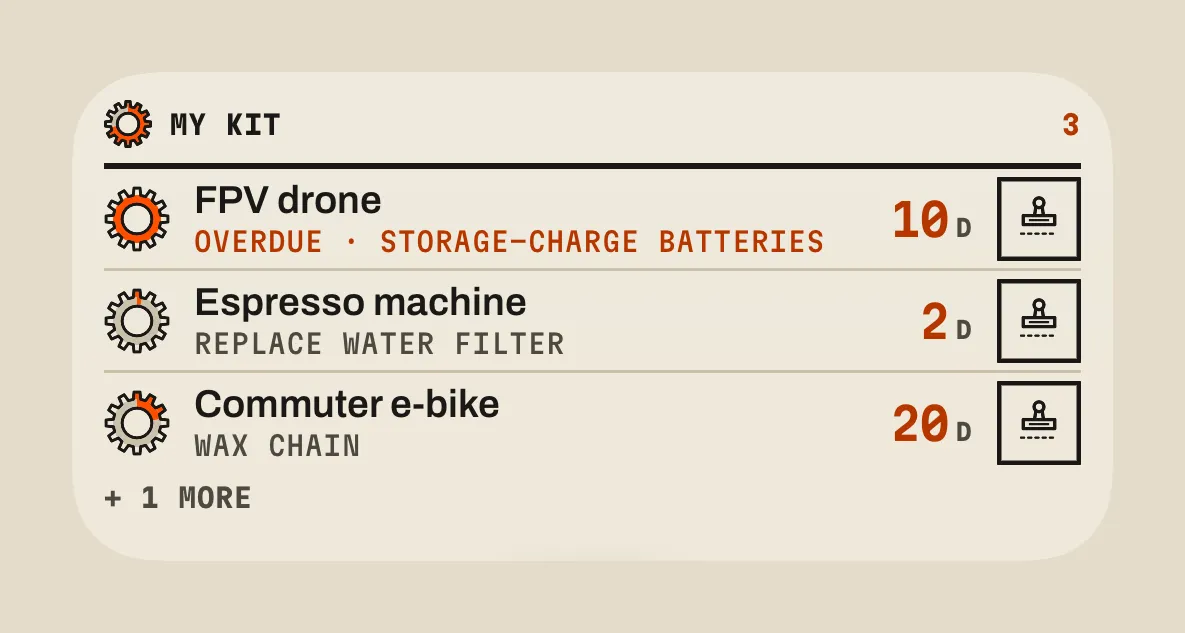
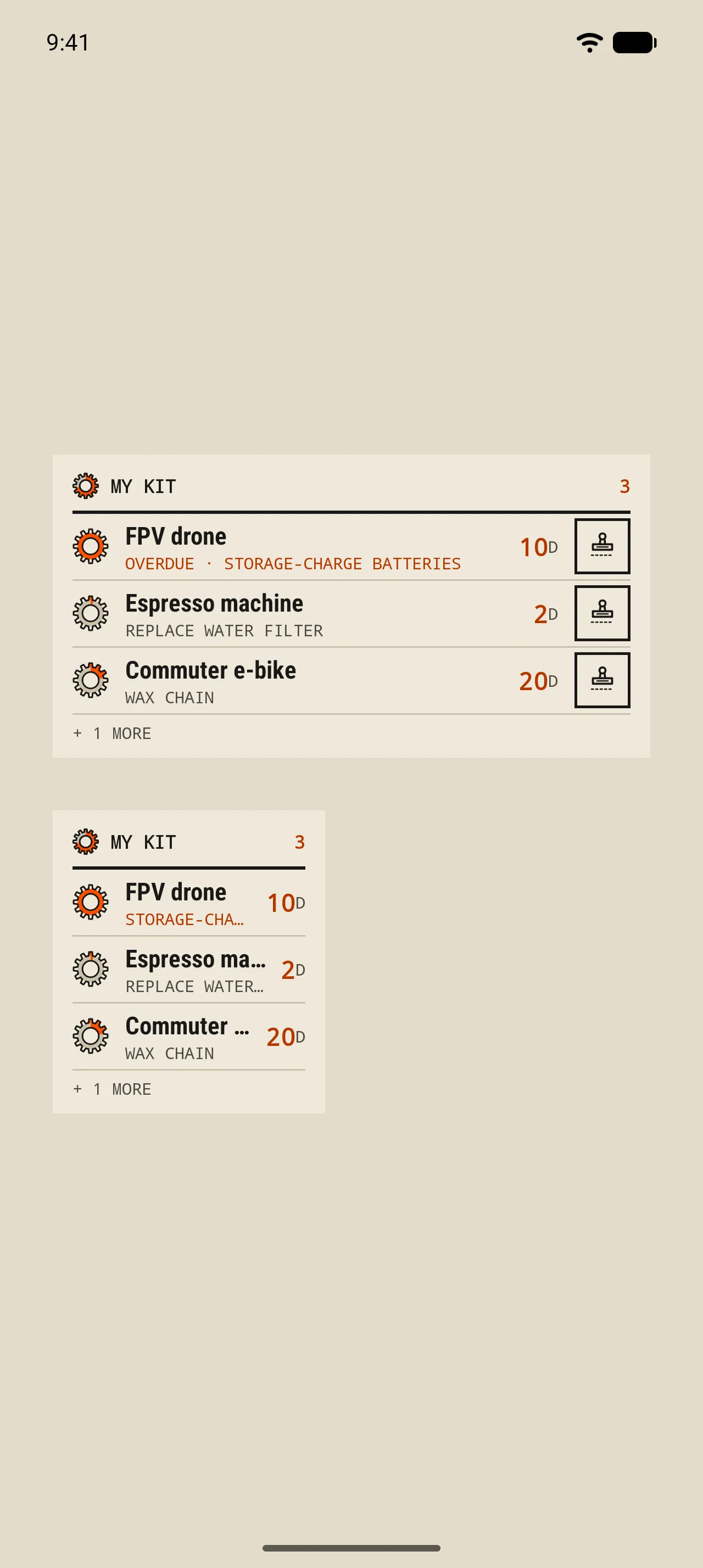
- 1 The header
What the widget shows (“My kit” for all gear, or the categories, or “Chosen gear”) and how many items are due soon or overdue.
- 2 A row
The item, its most urgent job (a component’s included) and the days left. Overdue ones say so in orange. Tap the row to open the item.
- 3 The done button
iPhoneStamps the job. On medium and large widgets; the small one opens the item instead.AndroidStamps the job. On rows wide enough for it; narrower ones open the item.
- 4 More
“+ 1 more” when the rest don’t fit. Nothing is ever cut in half.
Done from the widget
- The tap
- The job is stamped. The row keeps its place, shows a check, a full gauge and Done today, and offers Undo for 30 seconds.
- Undo
- Puts the job back exactly as it was, countdown and reminders included.
- After 30 seconds
- iPhoneThe row dims, then the list re-sorts and the item shows its next job in its new place.AndroidThe row blinks twice, then the list re-sorts and the item shows its next job in its new place.
- Empty
- “Nothing on the bench” with no gear; “All wound up” when nothing in its scope has a job.
Lock Screen
- Lock Screen widgets
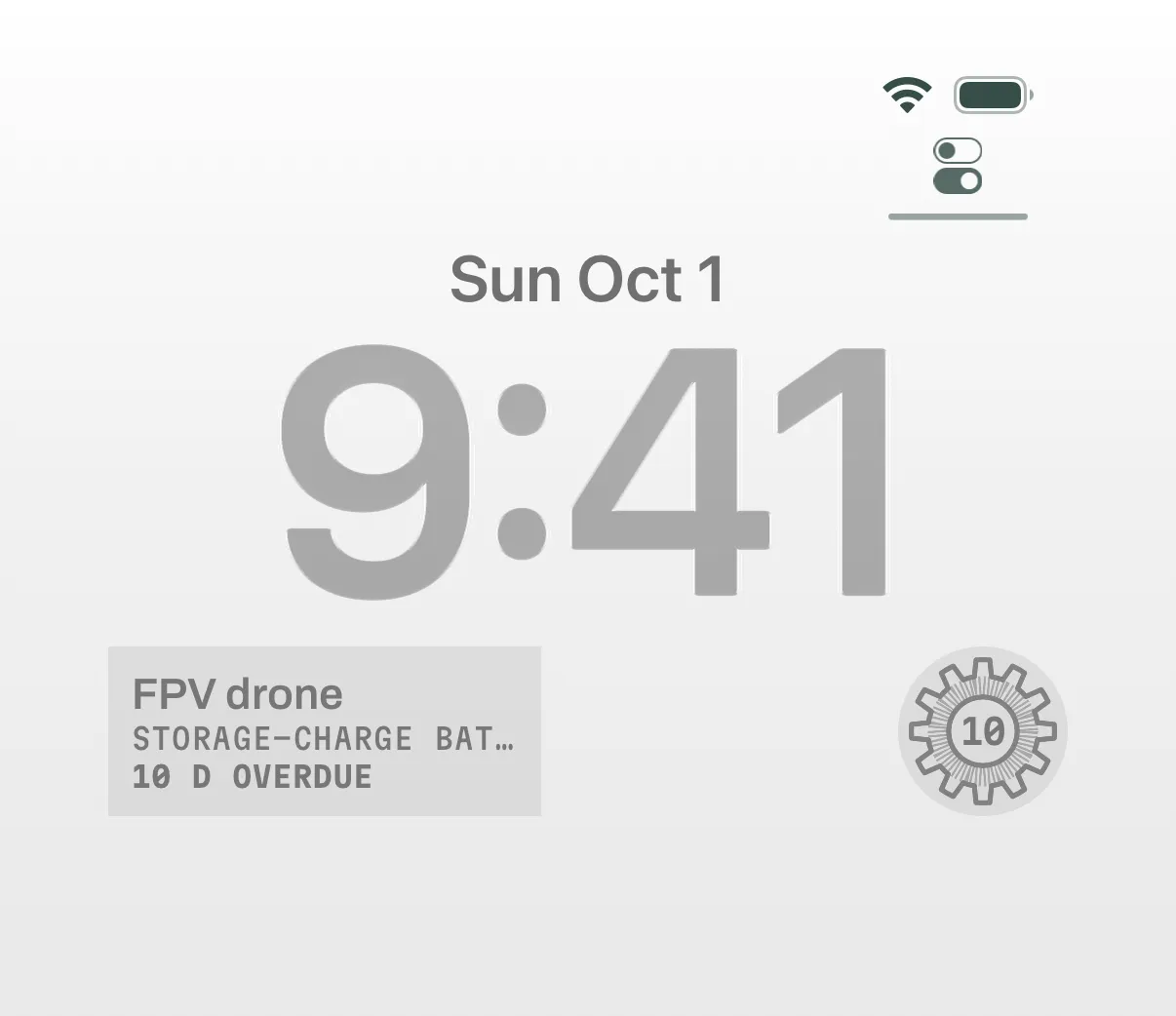
- iPhoneTwo Lock Screen widgets follow the same scope: a rectangular one with the most urgent item, its job and “3 d left”, and a circular gauge with the days in the middle. Both open the item.AndroidAndroid has no Lock Screen widget; the home-screen widget and the Quick Settings tile cover it.