Backup and calendar
GearKit keeps everything on your phone and nowhere else. A backup is a file you make and keep yourself; the calendar gets only what you send it.
Move to a new phone
- 01
On the old phone, open Settings and tap Export backup. Save the ZIP somewhere the new phone can reach: your files, a cloud drive, a message to yourself.
- 02
On the new phone, install GearKit, open Settings and tap Import backup. Pick the ZIP.
- 03
Read the result lines: what was added, what was updated, what was skipped.
- 04
Bought the unlock? Tap Restore purchases. It isn’t in the backup; the store keeps it.
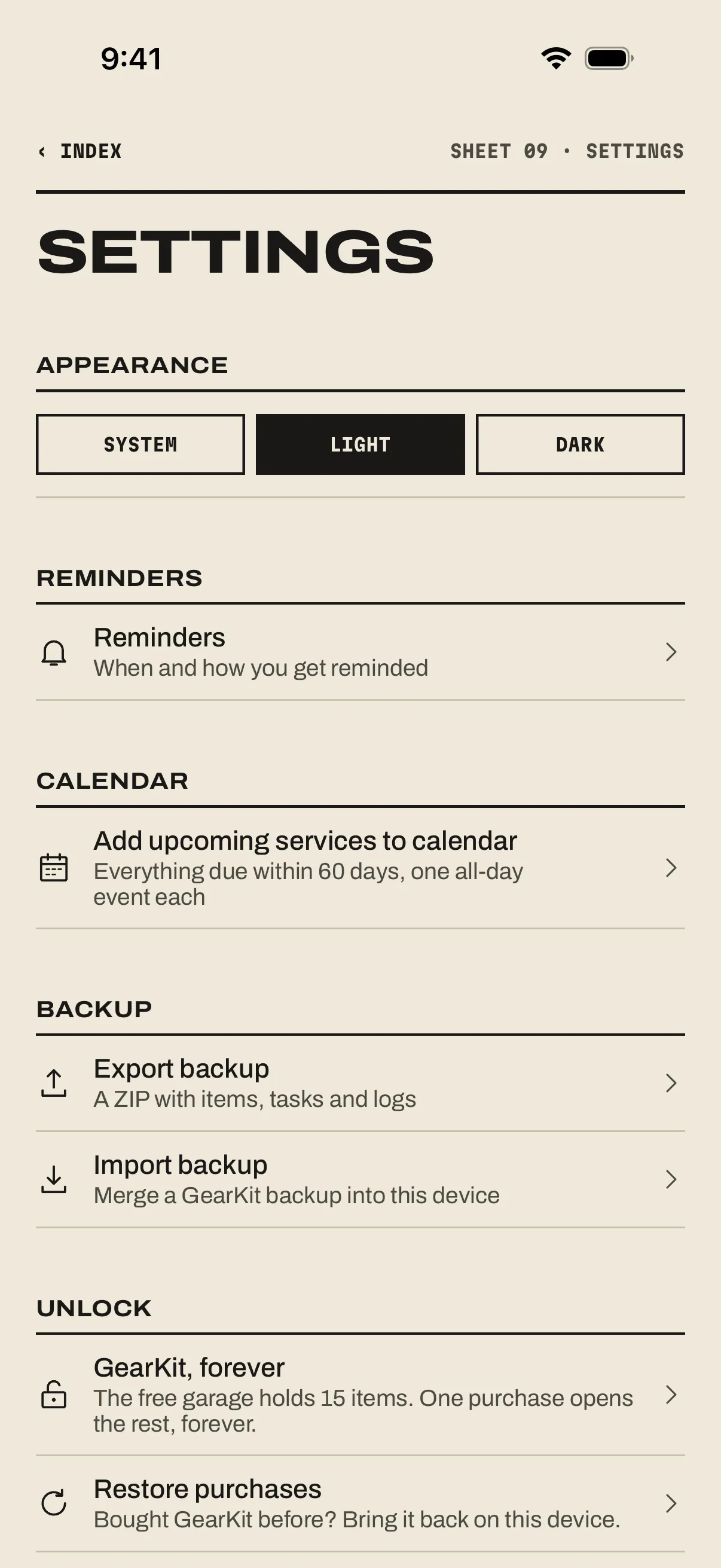
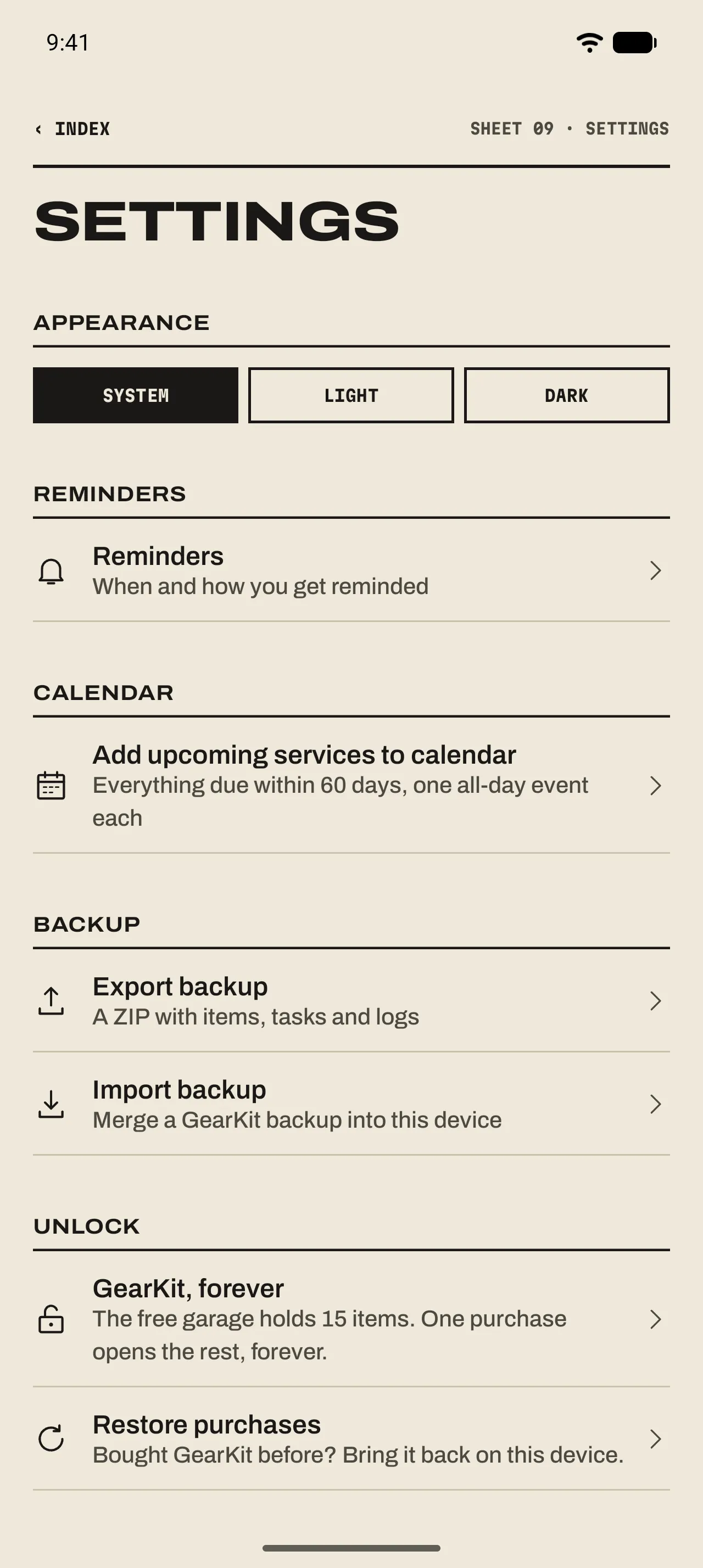
- 1 Add upcoming services to calendar
Everything due within 60 days, one all-day event each.
- 2 Export backup
A ZIP with items, tasks and logs.
- 3 Import backup
Merges a GearKit backup into this phone.
- 4 Restore purchases
Brings the unlock back from the store that sold it.
Backups
- What’s inside
- Five plain CSV files in a ZIP: your gear, its jobs, the service and usage history, and the next-service notes. Open them in any spreadsheet.
- Across platforms
- An iPhone backup imports on Android and the other way round, byte for byte the same format.
- The result
- “Gear: 2 added, 1 updated · Tasks: 3 added, 0 updated, 1 kept (newer here) · History: 5 entries added · Notes: 1 added, 0 updated · Skipped: 2 unreadable rows, 1 without its gear”.
- Your phone’s own backup
- iPhoneiCloud Backup includes GearKit’s data with the rest of the phone. The unlock isn’t in it; Restore purchases brings it back.AndroidAndroid’s own backup can include GearKit’s data with the rest of the phone. The unlock isn’t in it; Restore purchases brings it back.
Calendar
- One job
- iPhoneOn the item’s page, press and hold a job and tap Add to calendar. The event editor opens with the due date, all day, titled “GearKit: Commuter e-bike — Wax chain”.AndroidOn the item’s page, long-press a job and pick Add to calendar. Your calendar app opens the event with the due date, all day, titled “GearKit: Commuter e-bike — Wax chain”.
- The next 60 days
- iPhoneSettings › Add upcoming services to calendar adds one all-day event for every job due in the next 60 days, straight into your default calendar. iOS asks once for permission to add events; GearKit can’t read your calendar.AndroidSettings › Add upcoming services to calendar opens every job due in the next 60 days in your calendar app, one after another. Confirm each event to save it.
- What an event says
- Title “GearKit: <item> — <job>”, notes “Every 3 months”. Events don’t update themselves; add them again after the schedule changes.