Tips and tricks
The small things that make GearKit fit your gear rather than the other way round. Each one links to the chapter that explains it.
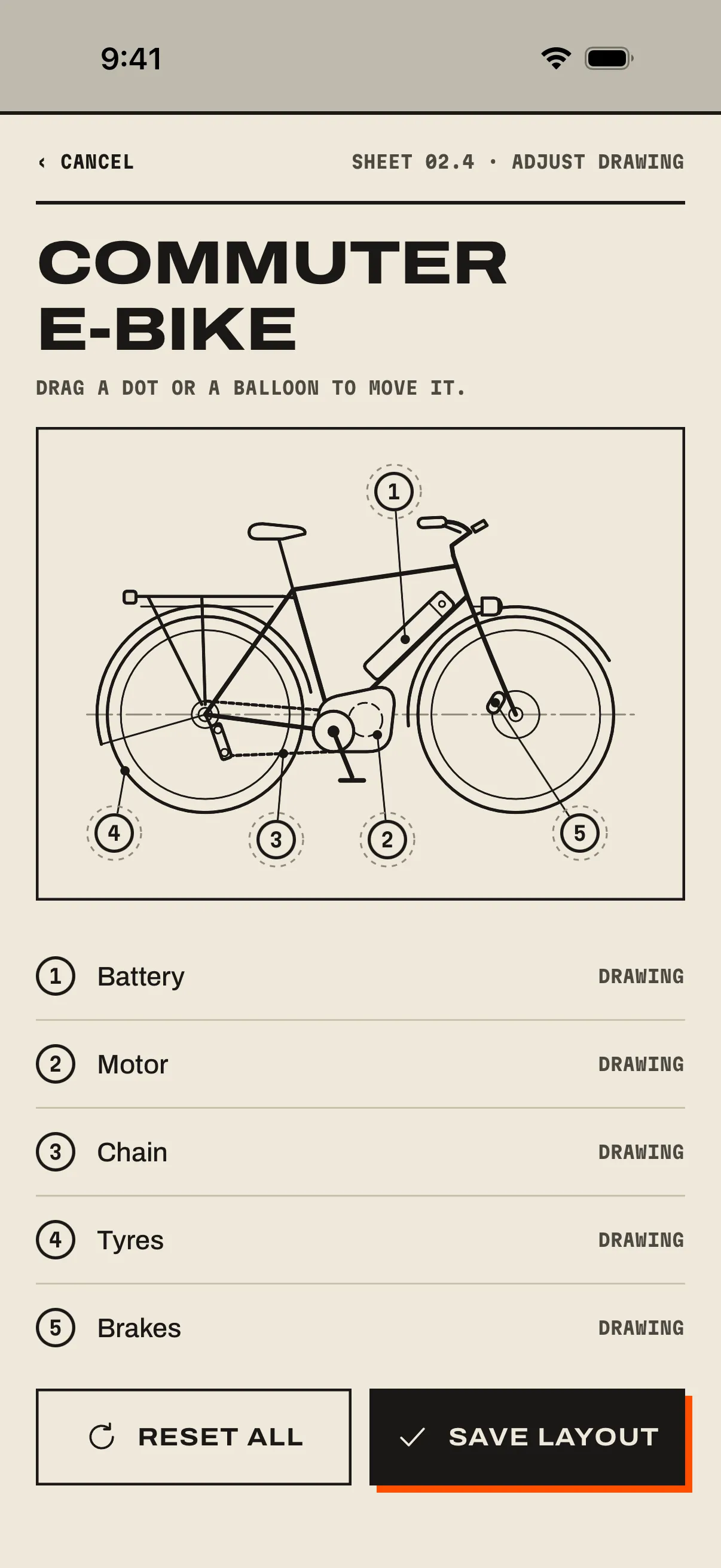
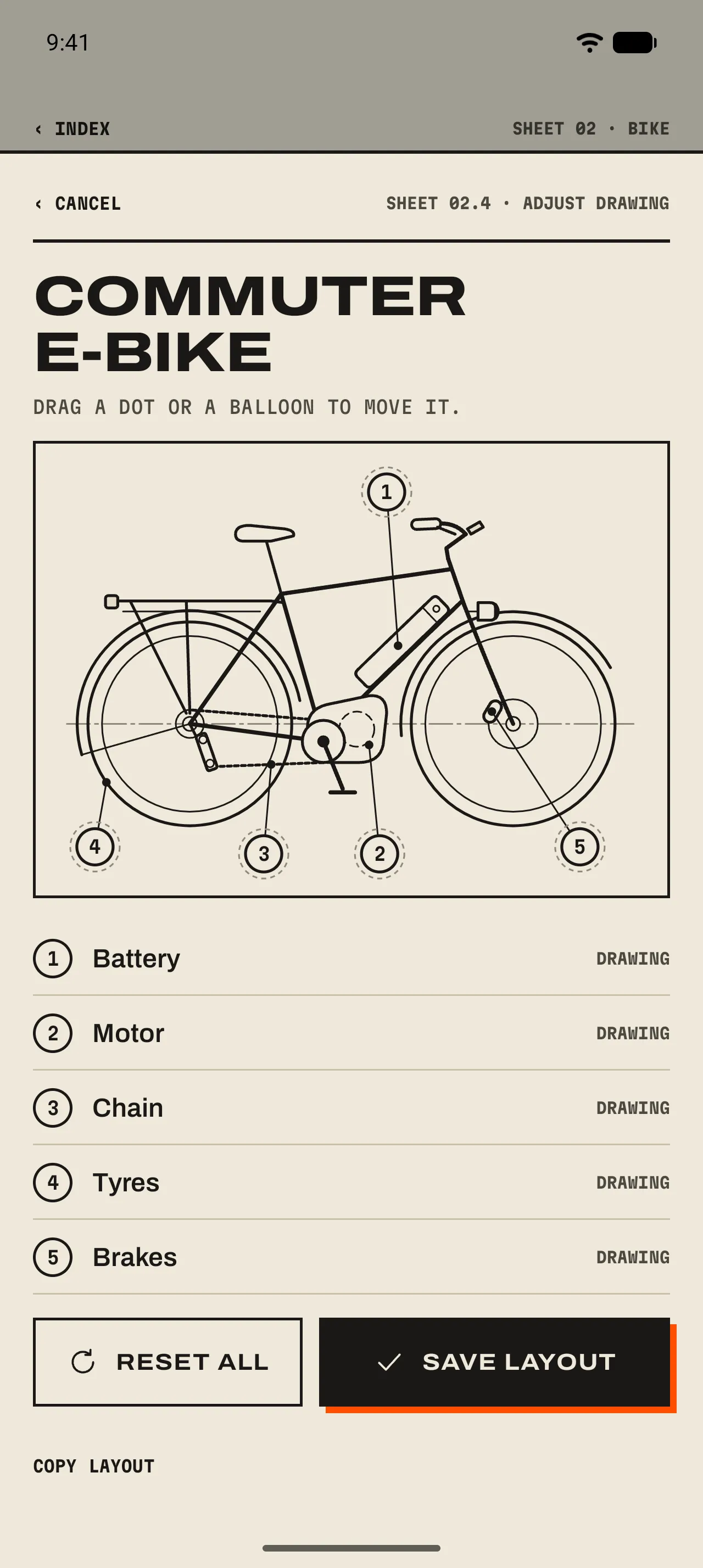
- 1 Drag a dot or a balloon
The dot is where the job happens, the balloon is where its number sits. Move either to match your gear.
- 2 Moved or as drawn
Each point says Moved or Drawing; a moved one has its own Reset.
- 3 Save layout
Reset all puts the drawing back; Save layout keeps your version.
On an item’s page
- Move the points
- The pencil on the drawing’s caption bar. Drag points to where they are on your gear. 03 An item’s page ›
- Next-service notes
- One-off jobs for the next time it’s on the stand. Ticked, they go to History as “Fixed: …”. 03 An item’s page ›
- Bought when?
- Year, year and month, or the exact day: as much as you remember. 03 An item’s page ›
- Idle for six months
- Unused gear gets a gentle note. Maybe it deserves a new home. 03 An item’s page ›
Jobs
- By use, not by date
- On completion or use: every logged use restarts the countdown. 04 Jobs and countdowns ›
- Optional jobs
- Silent reminders, and they never turn the item orange. 04 Jobs and countdowns ›
- Only while stored
- Pauses while the gear is a daily driver. 04 Jobs and countdowns ›
- Track without reminders
- Remind when due off: the countdown runs, nothing pings. 04 Jobs and countdowns ›
- Backdate a stamp
- Completed on takes any earlier day; it never winds the countdown backwards. 05 Marking a job done ›
- Remove a mistake
- Remove entry in History winds the job back, and Undo puts it back again. 05 Marking a job done ›
Usage and components
- Components count the parent’s use
- Play the console and its gamepads are used too. Switch it off for a spare in a drawer. 07 Components ›
- Components ride free
- They never use up one of the 15 free items. 01 Getting started ›
- Undo, or shake
- iPhoneEvery slip with Undo also answers to Shake to Undo.AndroidEvery slip with Undo stays four seconds. 06 Usage ›
Reminders and widgets
- Repeat and escalate
- How persistent GearKit is about a due job, and a safety net for overdue ones. 08 Reminders ›
- Preview them
- Three samples that remove themselves. 08 Reminders ›
- One widget per corner
- Scope a widget to a category or to chosen gear. 09 Widgets ›
- Pocket-proof
- A second tap on a done row opens the item; it never logs twice. 09 Widgets ›
Outside the app
- Stamp from Spotlight
- iPhoneType the job’s name and tap the checkmark.AndroidOn Android, the Quick Settings tile does the same in one tap. 10 Siri, tiles and shortcuts ›
- Shortcuts that follow you
- iPhoneAutomations log a ride when a workout ends. Recipes on the Ideas page.AndroidThe launcher’s Log usage shortcuts follow what you used most in the last 30 days. 10 Siri, tiles and shortcuts ›
Backup and calendar
- Imports merge
- Nothing is wiped and nothing is doubled; the newer completion wins. 12 Backup and calendar ›
- Sixty days at once
- Every job due in the next 60 days onto your calendar in one go. 12 Backup and calendar ›