Getting started
GearKit is the owner’s manual for everything you own. Each piece of gear gets a page, a drawing and a service schedule; GearKit counts down to every job and taps you on the shoulder before it’s due. It works offline and asks for no account.
Your first five minutes
- 01
Open GearKit. Four examples are already on the bench: a Commuter e-bike, an FPV drone, a Retro handheld and an Espresso machine. Every screen has something to show.
- 02
Poke around. When you’re ready for your own gear, tap Remove example data on the banner at the top of Home. It goes in one tap, no questions.
- 03
Tap Add gear. Name it, pick a category and a drawing, and tap Save.
- 04
On its page, tap Add task › under Service schedule. Name the job, set how often it comes round, tap Save. The countdown starts.
- 05
iPhoneHome shows Get service reminders until GearKit may notify you. Tap Enable and allow notifications when iOS asks, or reminders stay silent.AndroidHome shows Get service reminders until GearKit may notify you (Android 13 and later). Tap Enable and allow notifications when Android asks, or reminders stay silent.
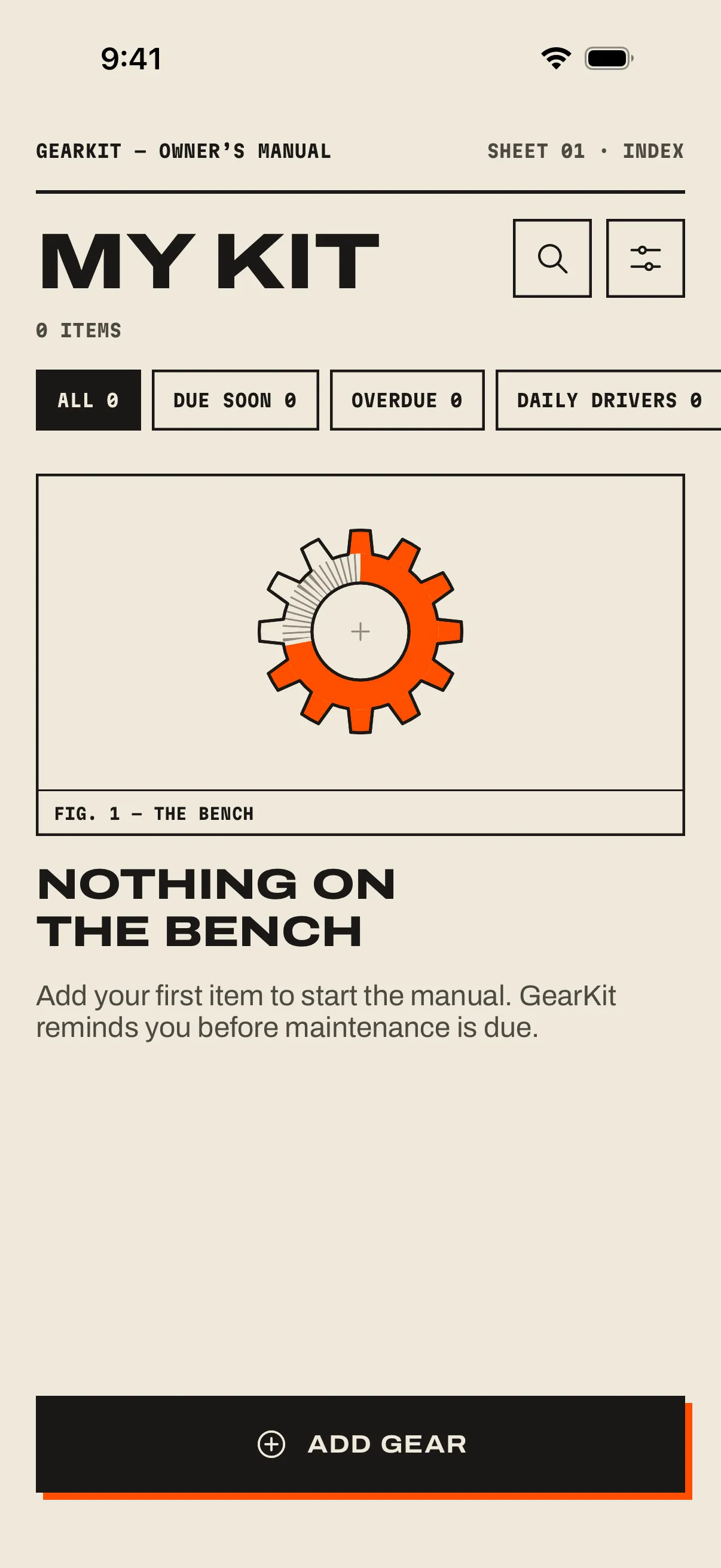
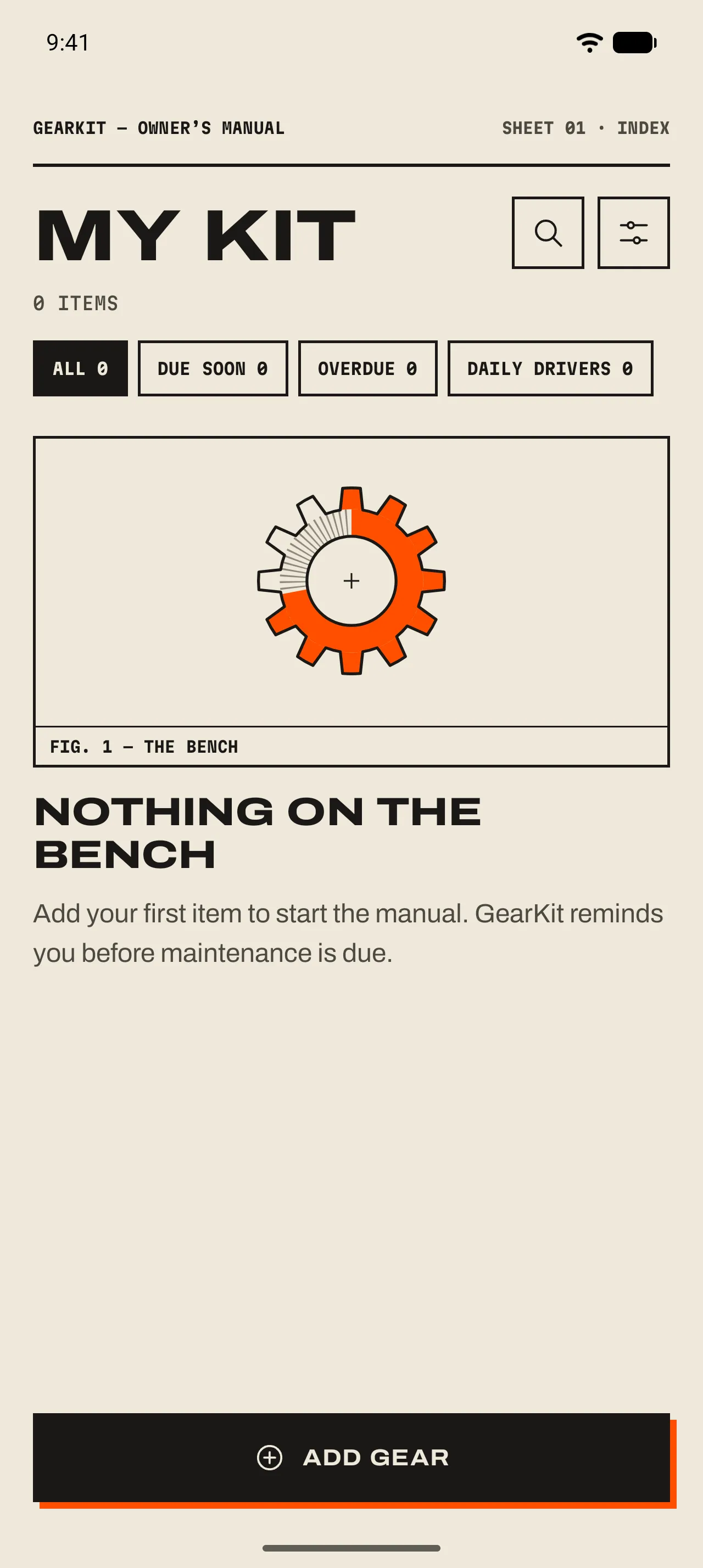
- 1 The sheet strip
Every screen is a sheet of the manual. The strip says where you are: GearKit — owner’s manual, Sheet 01 · Index.
- 2 Search and Settings
The magnifier searches your gear by name; the sliders open Settings.
- 3 The bench
Nothing here yet. Your first item takes its place.
- 4 Add gear
The one primary button on Home. It opens a blank page for a new item.
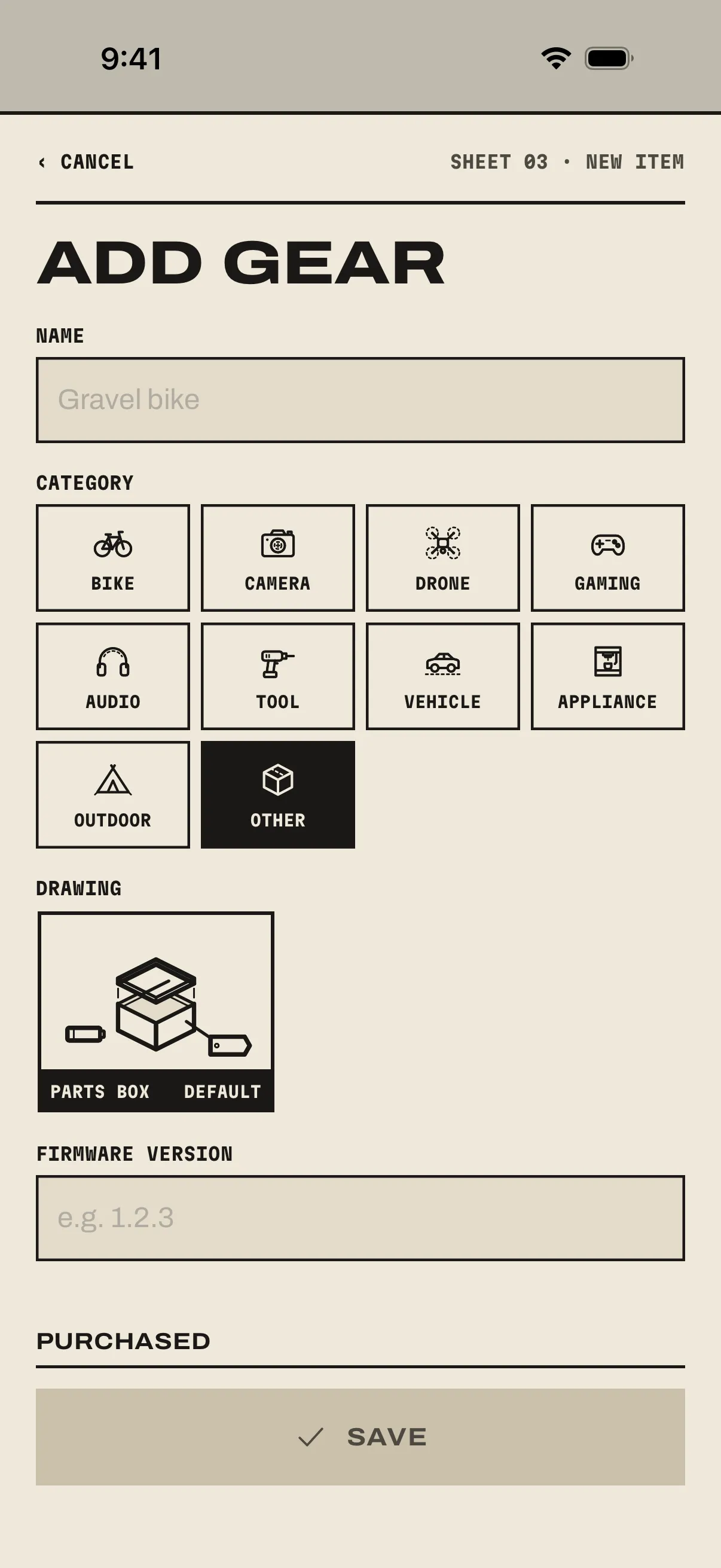
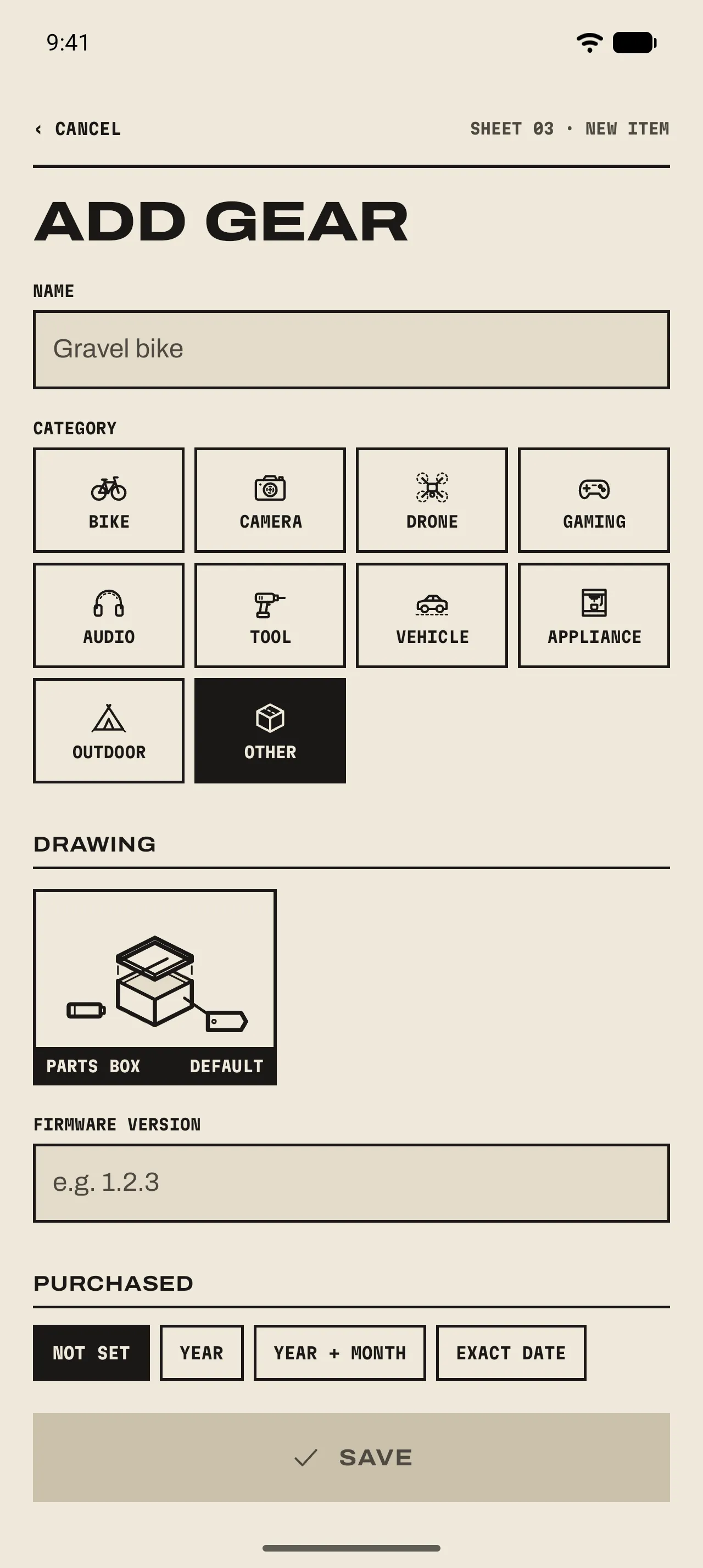
- 1 Name
What you call it. “Gravel bike”, “Mum’s Leica”, “The good grinder”.
- 2 Category
Ten of them. The category picks the drawing, the job suggestions and the tab on Home.
- 3 Drawing
The line drawing on the item’s page. Each category has a default; most have a few more to choose from.
The free garage
GearKit is free for your first 15 items. One purchase opens the rest, forever. There is no subscription.
- At fifteen
- Tapping Add gear with 15 items on the bench opens Your kit is at fifteen, with the one-time unlock and Restore purchases.
- Bought it before
- Settings › Restore purchases brings the unlock back on a new phone. It belongs to the store account that bought it.
- Light or dark
- Settings › Appearance: System, Light or Dark. Dark is the Darkroom: the same manual, printed on black.